


Overview
Now you can browse and restore or export SharePoint data for a specified point in time.
Our x360Cloud SharePoint folder browser lets you explore a folder tree of a particular SharePoint site and all of its backed up files. You can also
- see the SharePoint folder contents
- perform searches within the SharePoint folder
- restore or export selected folders or individual files
Browse your backed up SharePoint data using the x360Cloud browser tools
1. Navigate to the desired organization
1.1 Log into your reseller x360Cloud Dashboard.
1.2 Select the Organizations menu.
1.3. When the Organizations page displays, click the Name of the desired organization:

1.4. When the organization's Dashboard page displays, you will have access to the organization details and reports.
NOTE: If you are an organization-level admin user, the organization Dashboard page is your landing page.

2. Navigate to the Browser menu and select the SharePoint site you wish to browse
2.1. The SharePoint sites page under the Browser menu displays a list of all SharePoint sites discovered by x360Cloud:

Note: You can see the Data Protected column, which indicates the total backed up data for a SharePoint Site. The Last Backup column indicates the date and time of the latest Backup Report:

2.2 Click the Site Name which you wish to browse and restore or export.
3. Explore document libraries and folder tree
3.1 A tree of folders branching from site's Document Libraries is displayed for the selected SharePoint site:

- Expand and collapse folders in the tree by clicking individual folder icons.
- Click a folder title to designate it as a context folder, allowing you to see a list of its files.
- As each different context folder is selected in the folder tree, its files are loaded into the Folder Contents section to the right of the tree.

Ready to learn more?
Continue reading below to find out how you can explore the data captured by x360Cloud at a specified time, how you can perform file searches and recover the data.
Explore data as it was at a specified point in time
To apply a point-in-time setting, you must specify the date in the DATE field (and optionally, the time in the TIME field), and then click the Update button.
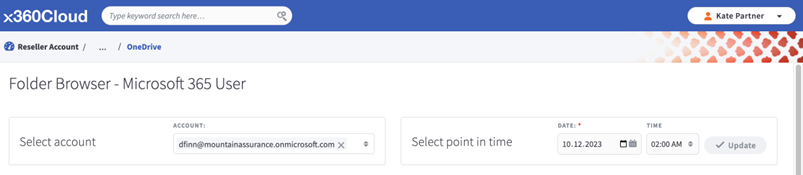
x360Cloud will show the latest file folder structure as it was captured at or before the specified point in time.
For example:
- if a folder (or file) was renamed after the specified point in time, it will be shown in the browser with the old name
- if a folder (or file) was moved after the specified point in time, it will be shown in the browser with the old path
- if a folder (or file) was added after the specified point in time, it will not be shown in the browser
NOTE: if a folder (or file) was deleted before the specified point in time, it will still be shown in the browser at its original path, so that it can be easily found and recovered in the event of a disaster.
Search for files in a specified folder
Need to search for a file within a particular folder?
Select the folder in the Container Folders section, enter your terms into the search box and press the Search button. The search field supports wildcards and can perform a search by “a phrase wrapped in quotation marks”.

Searches are performed using the following file attributes:
- File name: The extension must be part of a keyword
- File metadata: The document author
- File content. The following file formats are supported:
| File formats | Extension example |
| Microsoft Office document |
.doc, .docx, .xls, .xlsx, .ppt, .pptx |
| Mail formats |
.eml, .pst, .msg |
| Electronic Publication |
.epub |
| Hypertext Markup Language |
XHTML, HTML, .html, .xhtml, .xht |
| OpenDocument |
.odt |
| Portable Document |
|
| Rich Text |
.rtf |
| Database |
.sql |
| Plain Text |
.txt |
| Compression and packaging |
.7z, .zip, ARJ, Dump, etc. (RAR is not currently supported) |
| XML and derived formats |
.xml |
| Microsoft Office document |
.doc, .docx, .xls, .xlsx, .ppt, .pptx |
How to select objects for restore or export
You can select individual folders, files or a combination of them in any way that is convenient for you.
When you select a folder using the checkboxes in the folder tree, all its descendants - subfolders and files - are also selected. You can also de-select/select its specific subfolders or files if you want to refine your selection. In this case the originally selected parent folder will be shown as partially selected:

You can also select individual files by clicking each desired individual checkbox in the Folder Contents section:

How to perform bulk file selection
For bulk file selection, you have two methods available:
METHOD #1: Click the Select All button (in the upper right corner) to select all files in this folder or all search results (this will include all files from every page of the list).
METHOD #2: Click the “Checkmark” icon, which selects all files visible on the current page.

You can combine multiple options to select different combinations of files and folders to restore or export.
How to perform restore
1. First, select all of the folders, subfolders and files you wish to restore.
2. Then, click the Restore selected button (in the top right corner of the screen) to begin the process:

3. In the Restore window, enter the name of the document library you wish to create in the SharePoint root site for restored data and click the Restore button:

NOTE: SharePoint data can be restored to the root SharePoint site only.
Progress and status of the restoration can be checked in the Restore tab of Recent Activity Report at the bottom of the organization Dashboard page.

How to perform export
1. First, select all of the folders, subfolders and files you wish to export.
2. Then, click the Export selected button (in the top right corner of the screen) to begin the process:

3. In the Export window, click the Export button:

Export progress, status and link to download the data can be found in the Export tab of Recent Activity Report at the bottom of the organization Dashboard page.

SUPPORT | 720-204-4500 | 800-352-0248
- Contact Axcient Support at https://partner.axcient.com/login or call 800-352-0248
- Have you tried our Support chat for quick questions?
- Free certification courses are available in the Axcient x360Portal under Training
- Subscribe to Axcient Status page for updates and scheduled maintenance